> ## Documentation Index
> Fetch the complete documentation index at: https://docs.engramhq.com/llms.txt
> Use this file to discover all available pages before exploring further.
# Skills
> Activate Skill Hub workflows and launch them in chat.
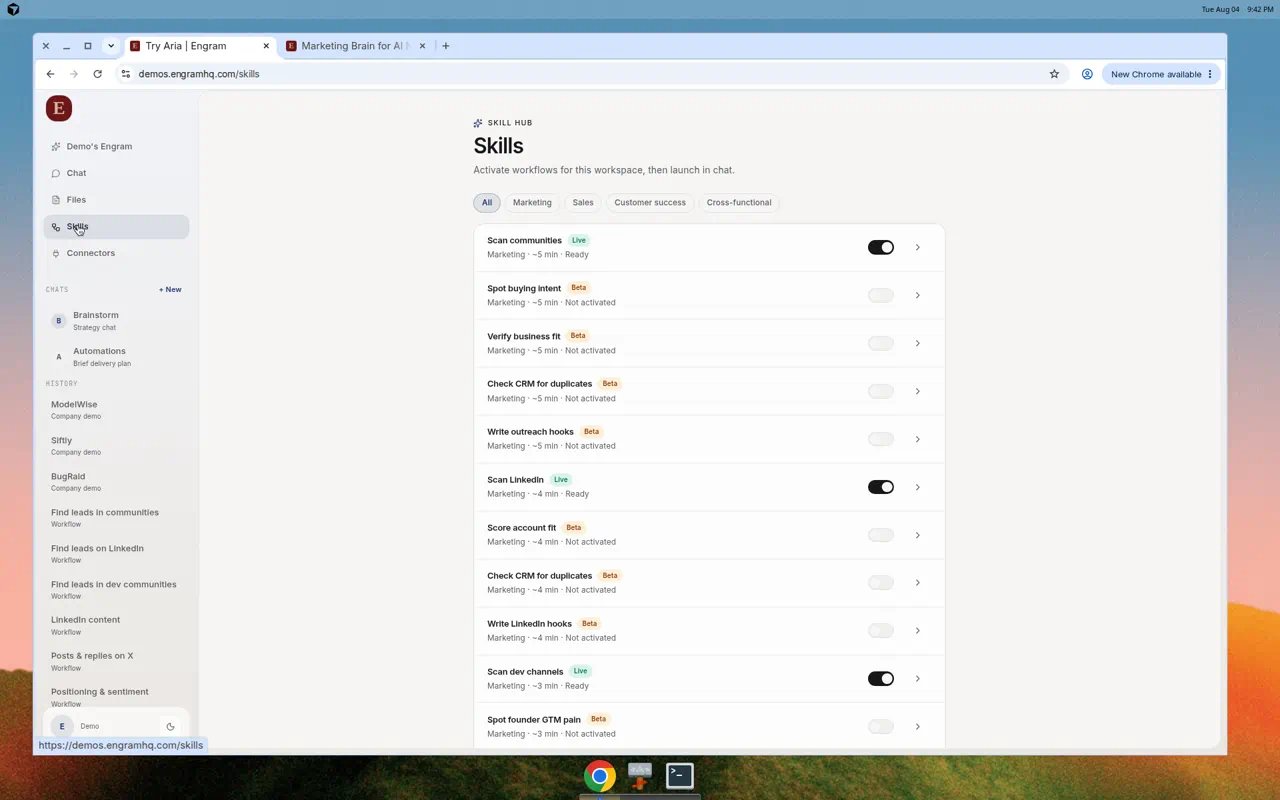
**Skills** (page eyebrow: **Skill Hub**) are packaged GTM workflows. You activate them for the workspace, configure inputs, then **Launch in chat**.
 ## Lanes and status
| Filter | Meaning |
| ------------------------------------------------------------- | ---------------------------------- |
| All / Marketing / Sales / Customer success / Cross-functional | Audience lane |
| **Live** | Ready for production use |
| **Beta** | Available but still maturing |
| Ready / Not activated / Blocked / Limited tools | Workspace readiness for that skill |
## Activate and launch
Choose **Skills** in the left nav.
Use the toggle on a Live skill such as **Scan LinkedIn** or **Scan communities**.
Select the skill row to open the detail panel. Read runtime, required tools, and description.
## Lanes and status
| Filter | Meaning |
| ------------------------------------------------------------- | ---------------------------------- |
| All / Marketing / Sales / Customer success / Cross-functional | Audience lane |
| **Live** | Ready for production use |
| **Beta** | Available but still maturing |
| Ready / Not activated / Blocked / Limited tools | Workspace readiness for that skill |
## Activate and launch
Choose **Skills** in the left nav.
Use the toggle on a Live skill such as **Scan LinkedIn** or **Scan communities**.
Select the skill row to open the detail panel. Read runtime, required tools, and description.
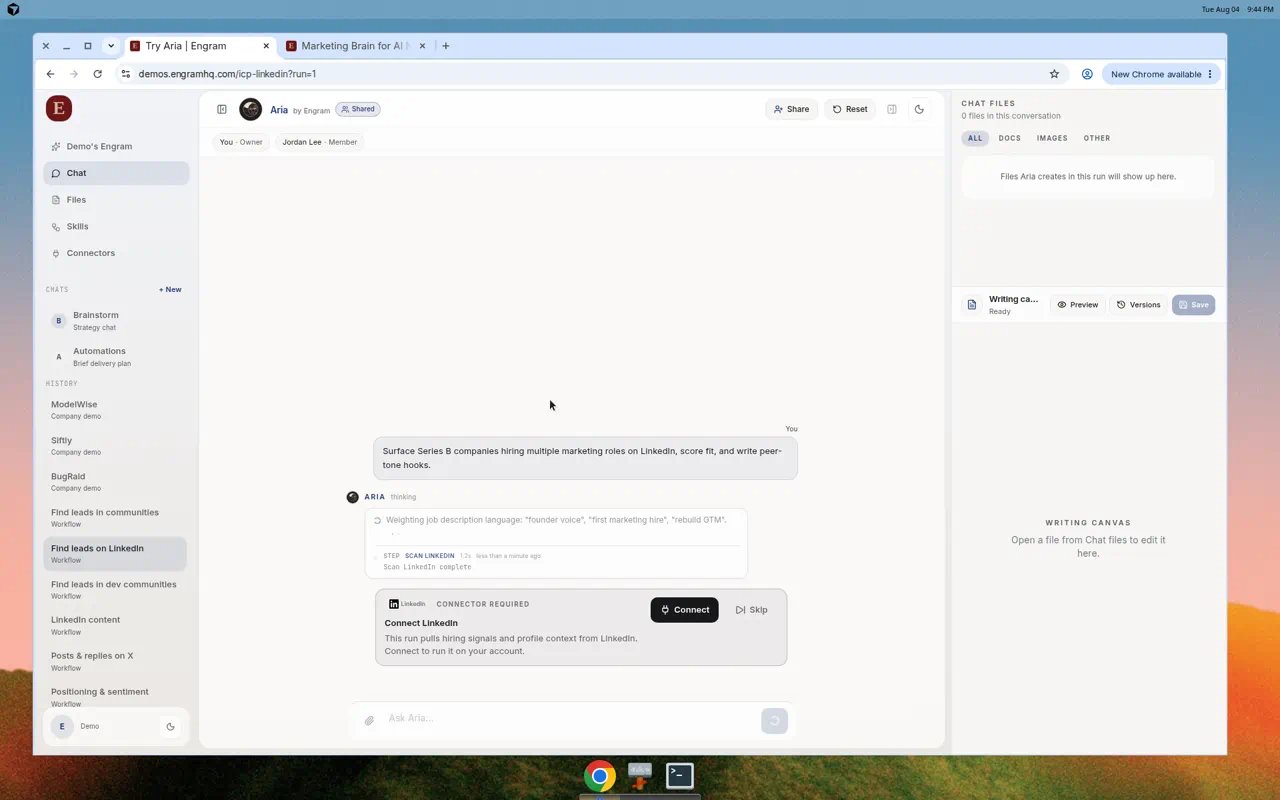
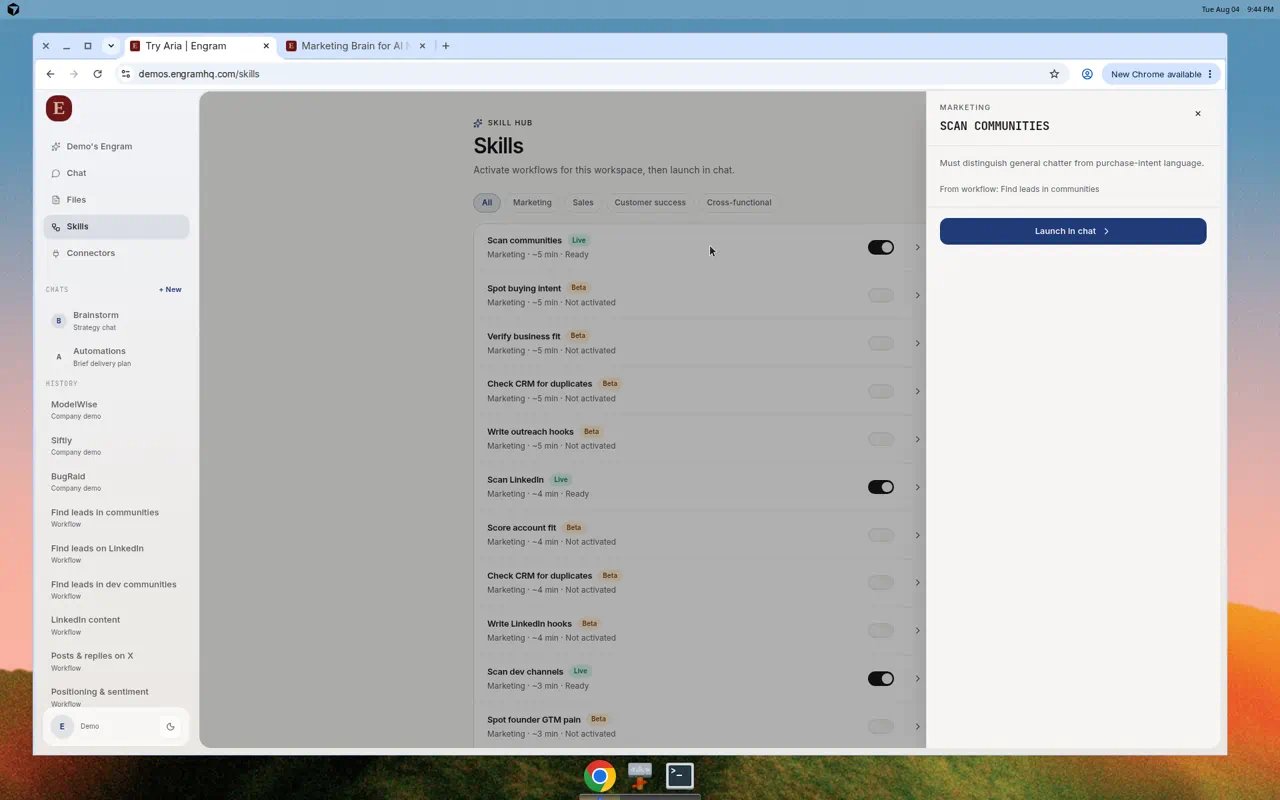 Fill required fields (for example competitor name, channel, time window), then **Launch in chat**. Aria continues the run in Chat with progress steps.
 ## Example: Competitive intel → content brief
A common Live skill path:
1. Activate the content / competitive intel skill.
2. Set competitor, channel (LinkedIn or X), and time window.
3. Launch in chat.
4. Edit the brief in Writing canvas.
5. Promote to Files or export to Notion / Slack if connected.
Full walkthrough: [Content brief](/use-cases/content-brief).
## Tips
* Prefer **Live** skills for drafts you plan to publish; try **Beta** when exploring.
* If readiness says **Limited tools**, connect the missing connector first.
* Shared skill links can open Chat with that skill ready to run.
## Related
* [Chat](/guides/chat)
* [LinkedIn leads](/use-cases/linkedin-leads)
* [Content brief](/use-cases/content-brief)
## Example: Competitive intel → content brief
A common Live skill path:
1. Activate the content / competitive intel skill.
2. Set competitor, channel (LinkedIn or X), and time window.
3. Launch in chat.
4. Edit the brief in Writing canvas.
5. Promote to Files or export to Notion / Slack if connected.
Full walkthrough: [Content brief](/use-cases/content-brief).
## Tips
* Prefer **Live** skills for drafts you plan to publish; try **Beta** when exploring.
* If readiness says **Limited tools**, connect the missing connector first.
* Shared skill links can open Chat with that skill ready to run.
## Related
* [Chat](/guides/chat)
* [LinkedIn leads](/use-cases/linkedin-leads)
* [Content brief](/use-cases/content-brief)